How can we help?
Everything about setting up and running Table ATC. Search below, or browse by topic.
Getting started
From signing up to taking your first online booking.
What does Table ATC actually do?
Two things. It puts a reservation button on your website so guests can book a table themselves, and it runs your walk-up waitlist so the host stand is not a clipboard and a shouting match.
Guests who join the waitlist can choose to get a text when their table is ready, so they can wait outside or in the bar instead of crowding the door.
What does it cost, and is there a trial?
$25 per restaurant per month. No setup fee, no contract, cancel any time.
You start on a 14-day free trial. We take card details up front, but the first $25 charge only lands when the trial ends. Cancel before then and you are never charged.
Text messages are separate and cost 2¢ each — see how texting is billed. Your account starts with 100 free texts.
I just signed up. What should I do first?
Open Settings and run the Setup wizard — it walks you through the four things that matter, in about two minutes:
- Your name, city, and timezone
- Which days and hours you take bookings
- How many tables you can seat per time slot
- Whether to protect Settings with a PIN
Get the timezone right before anything else. Every booking time, reminder, and report is calculated from it.
How do I put the booking button on my website?
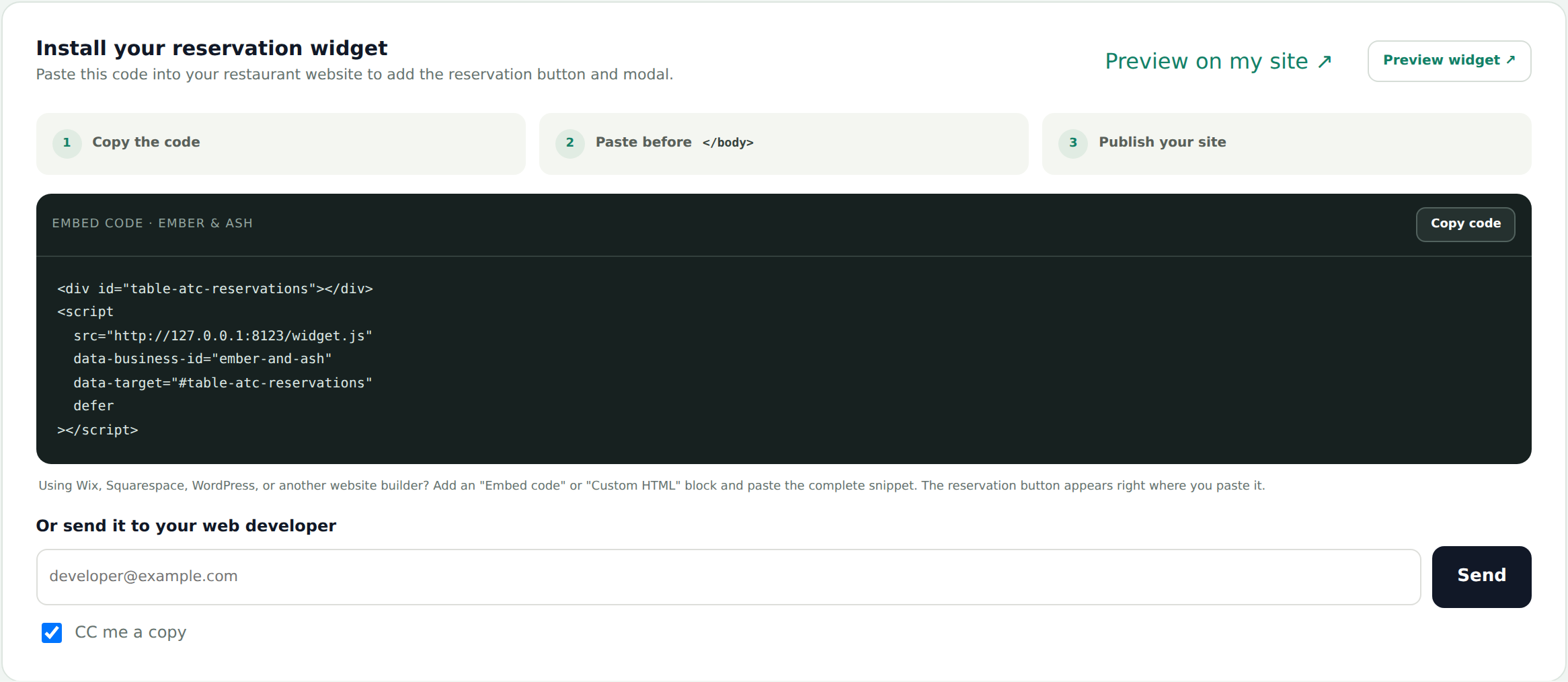
Go to Settings → Install your reservation widget and copy the code snippet. Paste it into your website wherever you want the button to appear.
It is two lines and works on any site that lets you add HTML — Squarespace, Wix, WordPress, Shopify, or a hand-built page:
<div id="table-atc-reservations"></div>
<script src="https://tableatc.com/widget.js" data-business-id="your-id" defer></script>
If you would rather not touch your site, use the Email the code to my web person button on that same panel and we will send it for you.
Can I see what guests will see before I go live?
Yes. On the Install your reservation widget panel, click Preview widget. It opens the exact booking window a guest gets, with your name, colours, hours, and real availability.
Booking through the preview creates a real reservation, so use a time you can cancel afterwards if you are just kicking the tyres.
Texting guests
Who you can text, what it costs, and the rules behind it.
Why can I text some guests but not others?
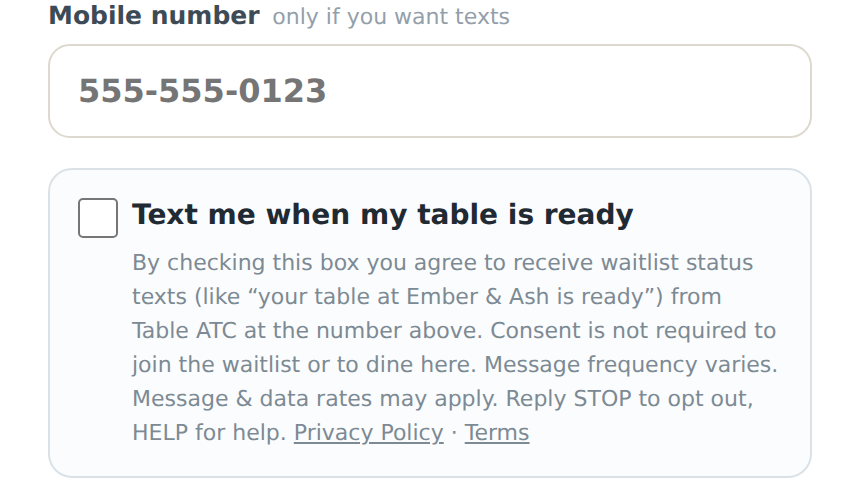
You can only text a guest who asked to be texted, themselves. That means they scanned your QR code, entered their own number, and ticked the box that says “Text me when my table is ready”.
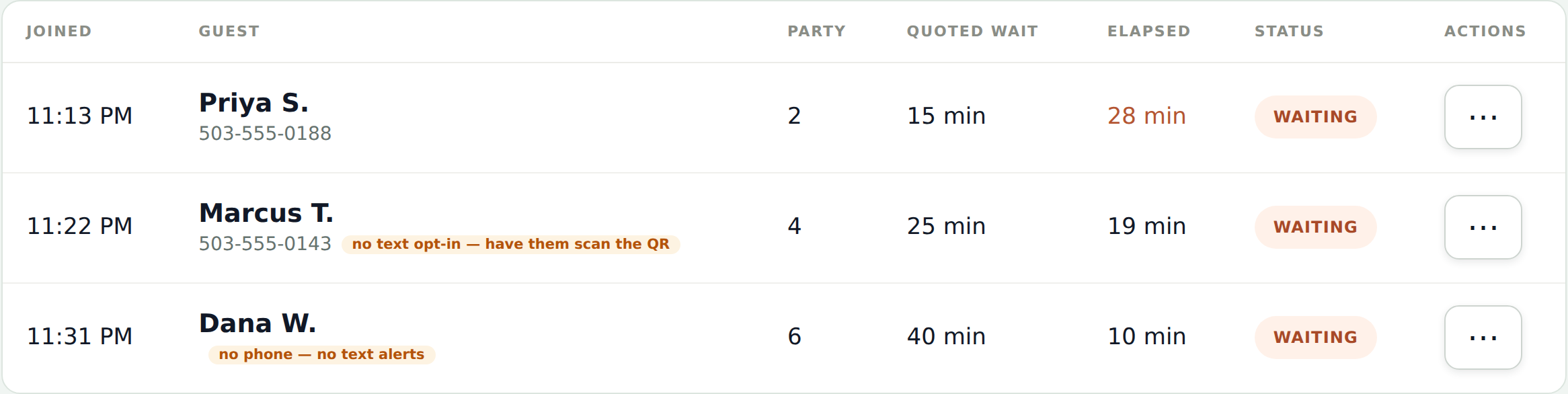
If your host types a guest's number into the tablet, that is not consent, and the app will refuse to send. You will see a tag under their name on the waitlist:
- No tag — they opted in, you can text them.
- “No text opt-in — have them scan the QR” — you have a number but no permission.
- “No phone — no text alerts” — no number at all.
This is not us being fussy. US carriers require documented, voluntary consent for business texting, and our permission to send at all depends on following it.
A guest is already on the list and now wants a text. What do I do?
Have them scan the QR code and enter the same number. The system finds their existing spot, so they keep their place in line — they do not go to the back — and ticking the box records their consent.
How much do texts cost?
2¢ per text. You buy credits in blocks of 250, 500, or 1000, and one credit is one text.
A long message can count as more than one credit — carriers split anything over about 160 characters into multiple parts, and each part costs a credit. Our table-ready message is short and fits in one.
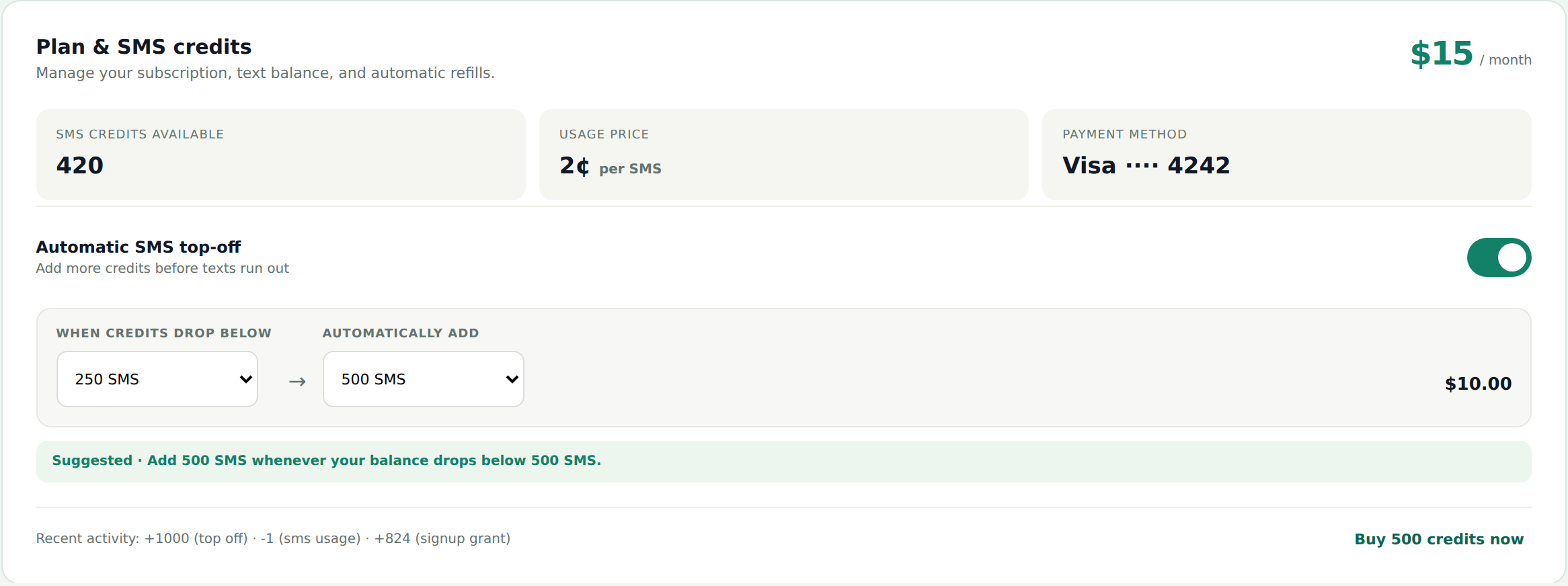
Your account starts with 100 free texts. After that, buy credits under Settings → Plan & SMS credits.
What is automatic top-off?
It buys more credits for you before you run out, so texts never stop mid-service. Set two numbers: a threshold (when to act) and an amount (how much to add).
Example: threshold 250, amount 500. When your balance drops below 250, we charge your saved card $10 and add 500 credits. That is one charge, and it always adds enough to get you back above the threshold.
If the card is declined we email you and wait 6 hours before trying again, so a bad card never produces a run of failed charges.
What happens if I run out of credits mid-service?
You get a small buffer — about 50 texts past zero — so a busy Friday does not stop dead the moment the balance hits nothing. We email you the moment texts start being blocked.
After the buffer, table-ready texts stop. Your waitlist keeps working normally: the host can still add guests, quote waits, and call names out loud. Only the texting pauses.
When a text is blocked, the host sees “Out of SMS credits — [guest] was not texted. Call their name.” and the guest stays on the list as waiting, so nobody gets forgotten.
A guest replied STOP. What happens?
They are opted out immediately and will not receive further texts from us, which is required by law and handled automatically — you do not need to do anything.
If you try to text them again, the send fails and the host is told to call their name instead. If they change their mind, they can reply START, or scan the QR code and tick the box again.
What if a guest texts something back?
Their reply lands on the waitlist row for that guest, so whoever is at the host stand sees it. Replies from guests who are no longer on a live list are emailed to you instead.
You can also have every reply emailed to you: Settings → Notifications → Email me guest replies.
Do reservation guests get texts too?
No. Reservations are handled entirely by email — the confirmation code, the confirmation itself with a calendar invite, and any reminders.
The phone number collected when someone books is a callback number for you, so you can reach them if something changes. It is never enrolled in texting.
Texts are only ever waitlist status alerts, only to guests who ticked the box on the QR form.
The waitlist and QR code
Running the door, and how guests add themselves.
How does the QR waitlist work?
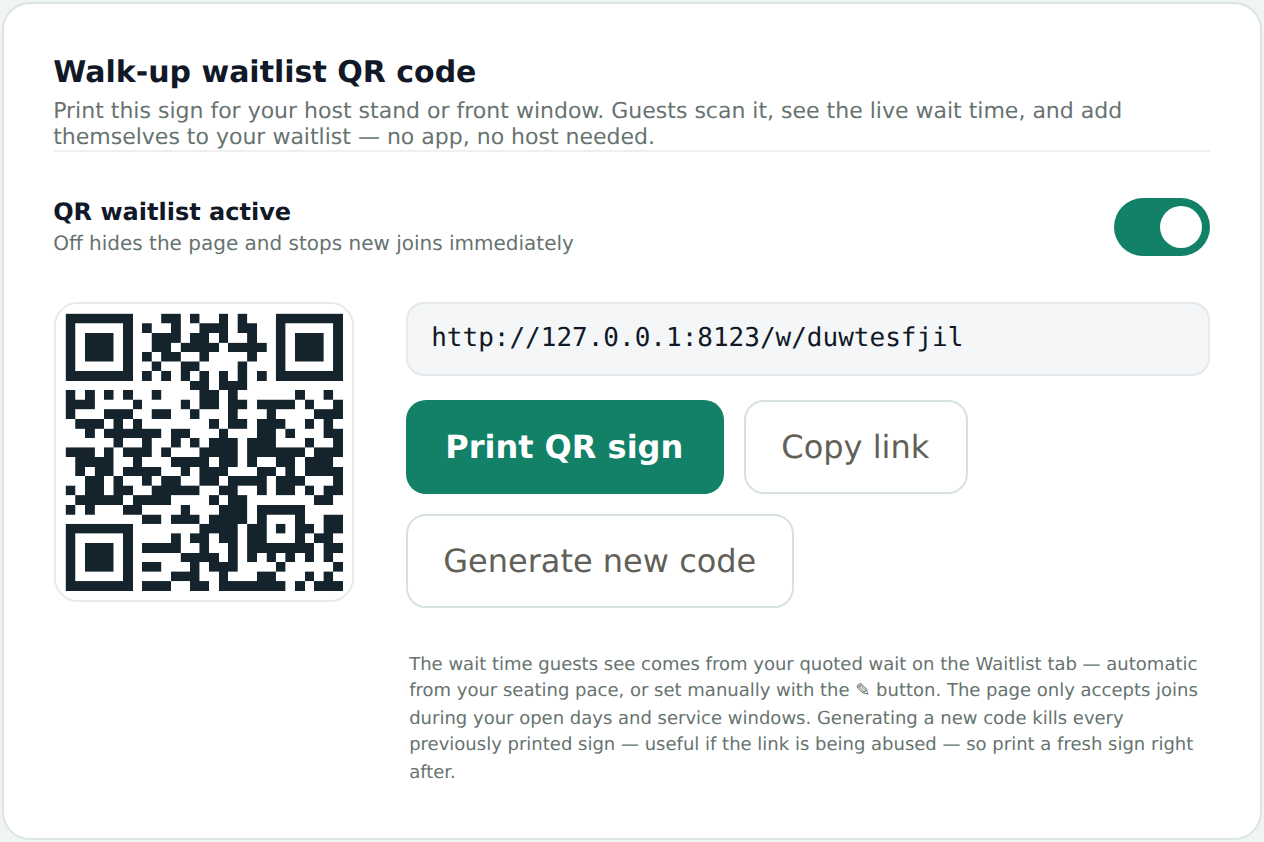
You print a QR code and put it on table tents and at the host stand. A guest scans it with their phone camera, which opens your waitlist page. They enter a name and party size, see the current wait and their place in line, and join.
The number and the text-alerts box on that page are both optional — a guest can join without either, and your host calls their name.
Find your code under Settings → Walk-up waitlist QR code, where you can print it or download it.
Can my host add someone to the list?
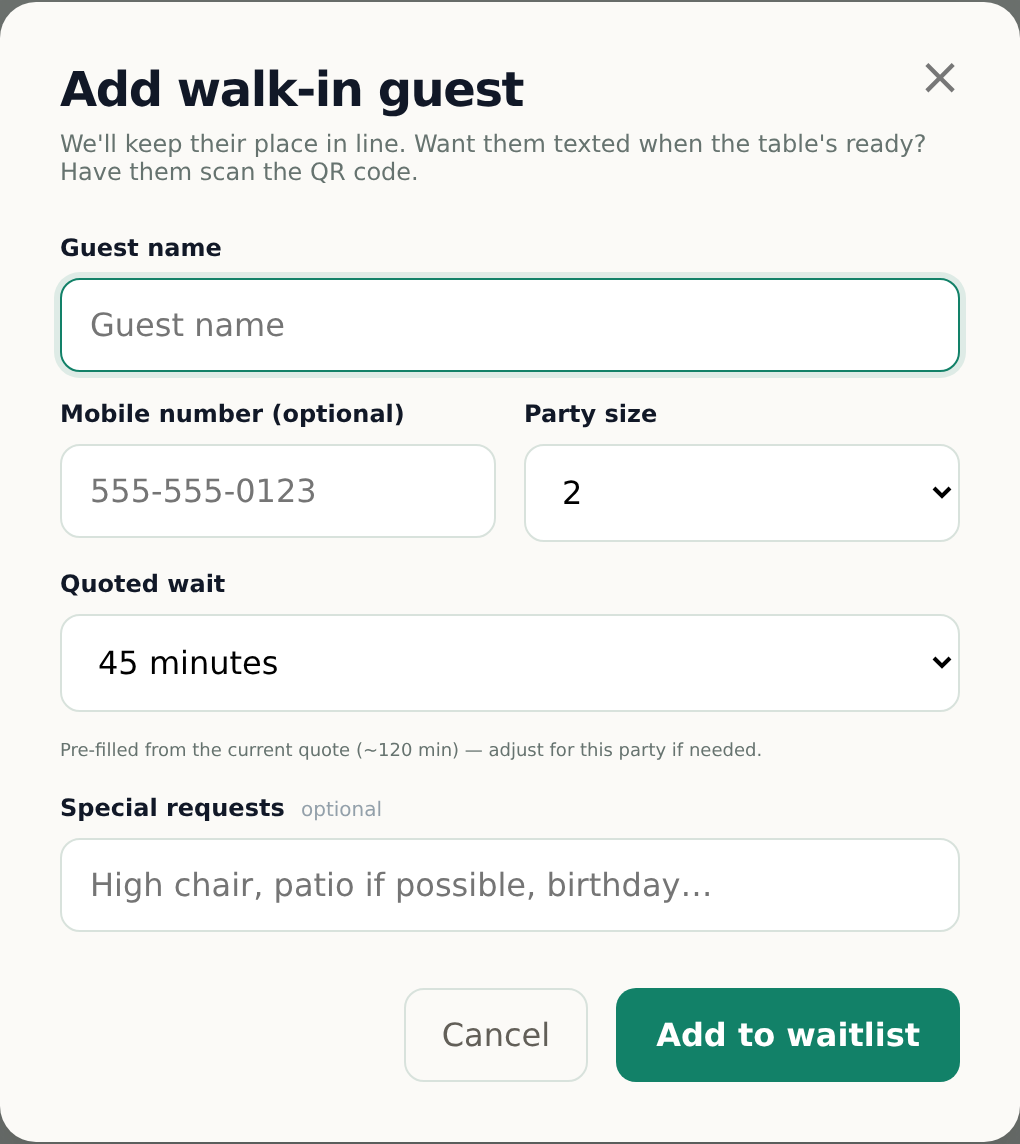
Yes, and for most guests that is faster. Tap Add walk-in and enter a name and party size. The number is optional — skip it and keep the line moving.
Remember that a number typed by staff does not enable texting for that guest. If they want a text, point them at the QR code.
Where does the quoted wait time come from?
It is calculated automatically from how fast you are actually seating people and how many parties are ahead. It updates itself as the night goes on.
To override it, tap the wait time at the top of the Waitlist tab and type a number. A manual quote stays until you clear it, so remember to reset it when the rush ends.
What does "generate a new QR code" do?
It creates a fresh code and immediately kills the old one. Any printed sign with the old code stops working, and guests scanning it get a not-found page.
Use it if your code was posted somewhere public and you are getting junk joins. Otherwise leave it alone — and reprint your signs straight away if you do use it.
Can guests join the waitlist when we are closed?
No. The waitlist page follows your service hours — outside them it shows a friendly closed message with today's hours instead of the join form.
You can also switch the whole QR waitlist off under Settings → Walk-up waitlist QR code if you do not want walk-ups at all.
The Host Kiosk
The tablet app your staff run the door from.
What is the Host Kiosk?
It is the Table ATC app your staff use at the host stand — the same thing you see when you sign in, just used standing up. Everything the door needs is behind five tabs:
- Waitlist — everyone waiting, in arrival order. Add walk-ins, quote waits, text or call parties, seat them.
- Reservations — today’s bookings, whether they came from your website or a phone call.
- History — everyone seated, cancelled, or removed. Nothing is ever deleted.
- Settings — yours, not your staff’s. Lock it with a PIN.
- Help — these articles, searchable, without leaving the app. See the Help tab.
There is nothing to install. It runs in the browser on any tablet, laptop, or phone.

How do I set up the tablet at the host stand?
Open a browser on the tablet, go to tableatc.com, and sign in with your account. Then:
- Add it to the home screen so it opens full-screen like an app. On iPad: Share → Add to Home Screen. On Android: menu → Add to Home screen.
- Turn on a Settings PIN first. Staff share this screen, and without a PIN anyone can change your hours or buy credits.
- Set the tablet to never sleep, and leave it plugged in.
Any tablet from the last few years is fine. It stays logged in, so this is a once-only job.
How do I add a reservation for someone who calls in?
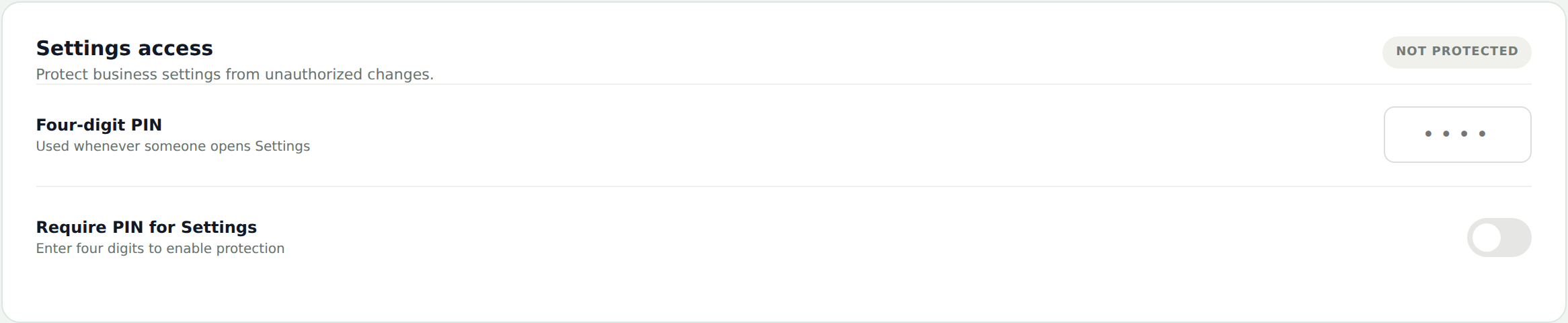
On the Reservations tab, tap Add reservation. You need a name, a mobile number, party size, and a date and time. Table number and notes are optional but worth filling in while the guest is on the line.
The booking is created as confirmed straight away and appears in the list with everything else, so a phone booking and a website booking sit side by side.
Ask for an email address while you have them on the phone. With one, the guest gets the same confirmation a website booking does — the details, a calendar invite, a link to change or cancel — and the same reminder before the booking. Read it back to them before you save; a typo means the email goes nowhere and nobody finds out.
If the address is wrong, the booking gets a red Email bounced tag once the mail comes back — see what that means.
Without an email they get nothing in writing. We do not text a number you typed in: the guest gave it as a callback line, not a texting opt-in, and only guests who tick the box themselves are ever texted. See who you can text.
What does the red "Email bounced" tag on a booking mean?
It means the confirmation we sent came back undelivered, so the guest never got it — and will not get the reminder either. Almost always this is a typo taken down over the phone.
Tap the guest to see the reason:
- No such address — the address does not exist. Call and check it.
- Mailbox full — real address, no room. Worth trying again later.
- Marked as spam — they reported the email. Do not email them again; call instead.
The booking itself is fine and the table is still held. Only the emails failed. If you get a corrected address, remove the booking and add it again with the right one.
The tag appears on every upcoming booking that uses the same address, not just the one that bounced.
What does a normal service look like on the kiosk?
Guests arrive without a booking: tap Add walk-in, enter a name and party size, done. Point them at the QR code if they want a text when their table is ready.
A table opens: tap the guest, then Text table ready if they opted in, or call their name if they did not. Then Seat party to clear them off the list.
A booking arrives: find them on the Reservations tab and seat them the same way. Tap any guest to see their phone, email, and notes — useful when someone is running late.
Can I see a guest's phone number or notes on the kiosk?
Yes — tap any guest on the Waitlist or Reservations tab. Their phone and email appear as tappable buttons, so on a tablet you can call or email straight from the row, along with anything they typed in the notes box.
If a guest has replied to one of your texts, the reply shows on their row too, with a Mark as read button once you have dealt with it.
Should my staff have their own logins?
Right now the kiosk uses one account per restaurant, which the tablet stays signed in to. There are no separate staff logins.
So the important protection is the Settings PIN: it lets your host use the Waitlist and Reservations tabs all night while keeping your hours, billing, and QR code out of reach. Set one before the tablet goes on the floor.
Can I put the wait time and QR code on a screen guests can see?
Yes — that is the lobby display: a full-screen page for any TV or tablet at your door showing your logo, the current wait, how many parties are in line, and the QR code to join. It refreshes itself every 30 seconds all night.
Set it up under Settings → Lobby display:
- Open the display link in the lobby screen’s browser and put it full screen (F11 on most browsers, or Add to Home Screen on a tablet).
- Upload a background photo — a wide landscape shot of your room or food works best. Without one you get a clean dark default.
- Optionally upload a separate display logo, useful when your main logo is dark on dark.
- Set the screen to never sleep and leave it plugged in, same as the host tablet.
The wait shown is your quoted wait from the Waitlist tab. The link uses the same code as your printed QR sign, so generating a new QR code changes the display link too — just reopen it on the screen afterwards.
Where do I look something up mid-service?
The Help tab, at the right-hand end of the tab strip. It holds every article on this page, so your host can check how something works without leaving the floor — the waitlist stays exactly where it was, and one tap on any other tab goes back to work.
Search the box at the top to narrow it: type two words rather than one and it filters harder, so “text credits” beats “text”.
Links inside Settings marked with an arrow open the Help tab at the exact article for that setting.
What happens if the tablet loses wifi?
The kiosk needs a connection to save anything, so during an outage the screen keeps showing the last state it loaded but new walk-ins and seatings will not save.
Fall back to pen and paper for the few minutes it takes, then enter anyone you added once the connection is back. Nothing already saved is lost — guests who joined through the QR code are on the server, not on the tablet.
Reservations
Online bookings, confirmations, and changes.
What does a guest go through when they book?
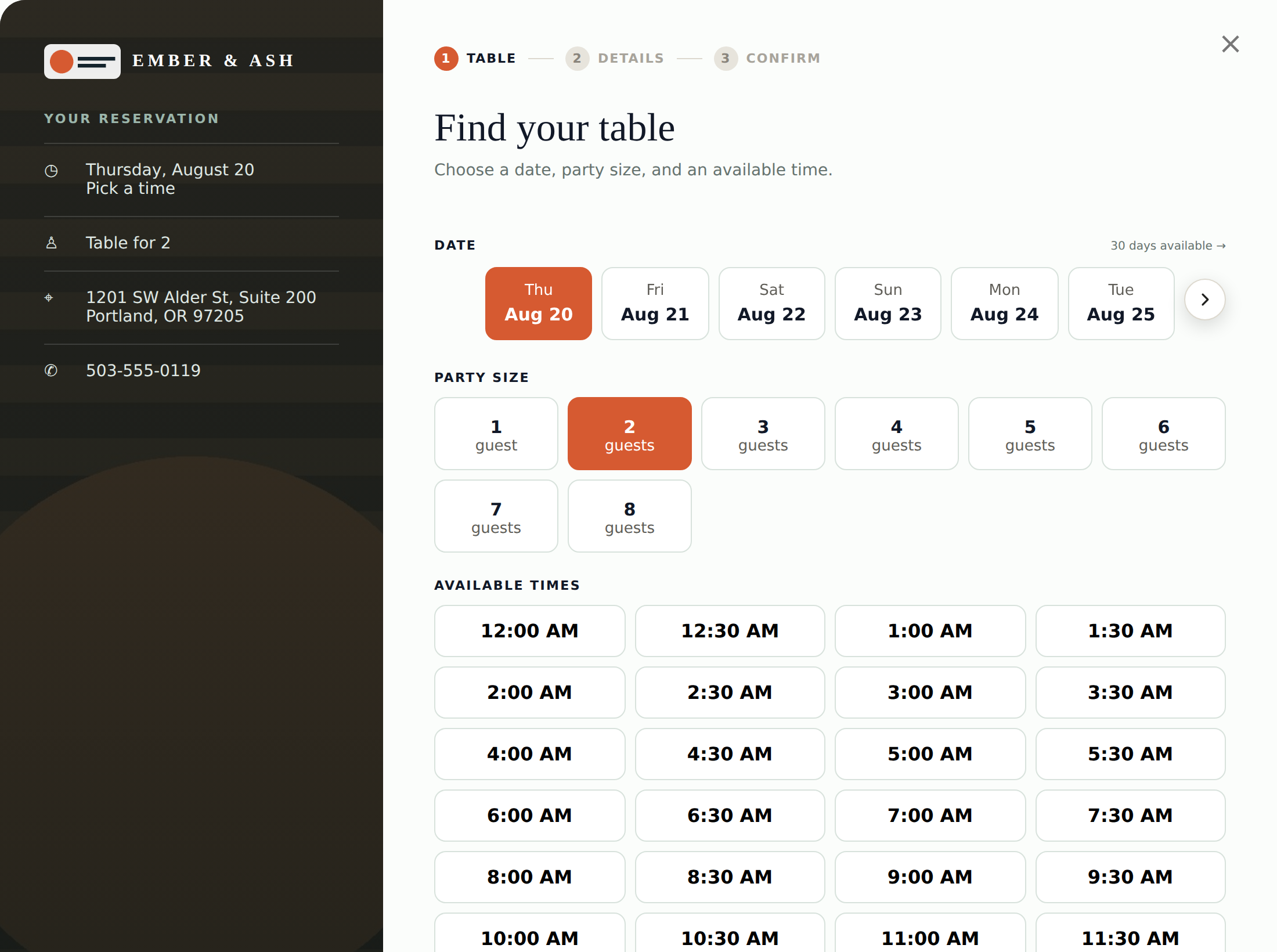
They pick a date, party size, and time; enter their name, email, and phone; then get a short code by email to confirm it is really them. Once confirmed, they receive a confirmation email with a calendar invite attached.
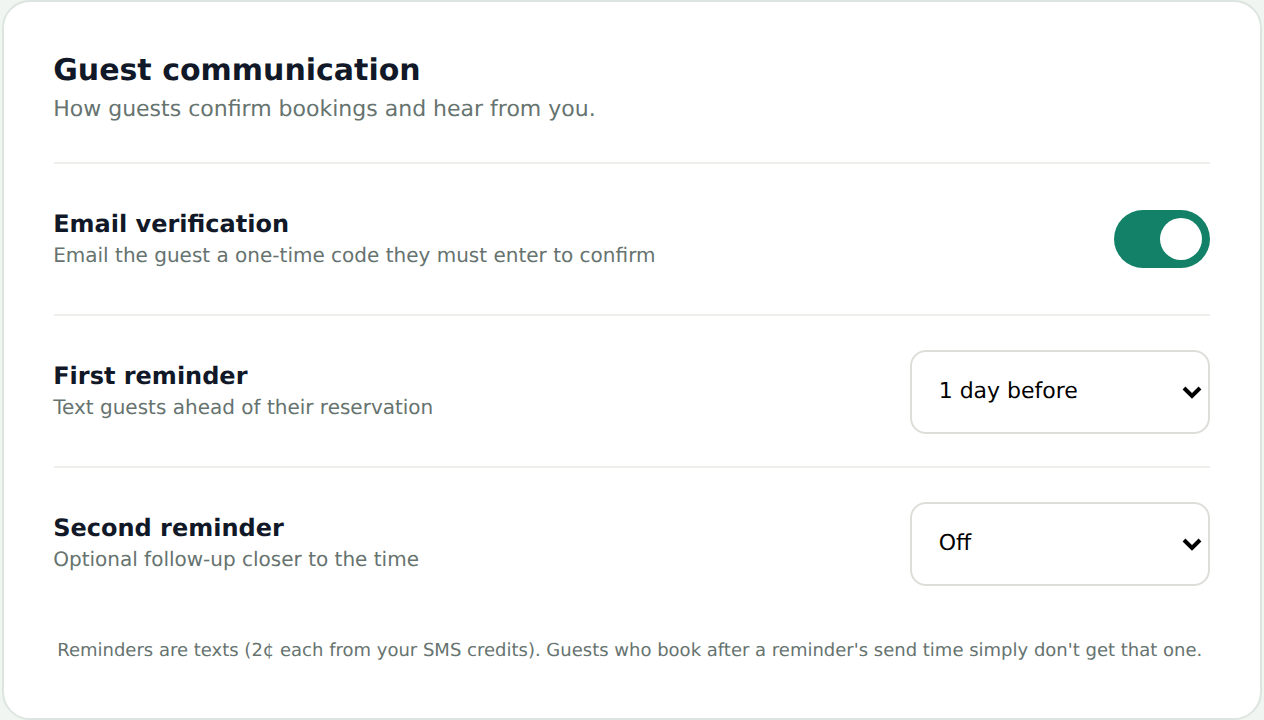
The code keeps junk bookings from tying up your tables. You can turn it off under Settings → Guest communication if you would rather not have the extra step.
How does a guest cancel or change a booking?
Every confirmation and reminder email has a Manage reservation link. From there the guest can confirm they are coming or cancel, right up until the reservation time.
A cancellation frees the table immediately and it reappears as available to other guests.
Do guests get reminded about their booking?
Yes, by email, and you choose the timing under Settings → Guest communication — anything from 1 hour to 3 days before, and up to two reminders per booking.
Each reminder has a one-tap I'll be there button, which is the cheapest no-show insurance there is.
How do I see a guest's phone number or their notes?
Click the reservation on the Reservations tab. Their phone and email appear as tappable buttons — useful on a tablet when you need to call about a late table — along with anything they typed in the notes box, like allergies or a birthday.
How do I control how many bookings I take at once?
Under Settings → Availability, set tables per time slot — how many parties you will accept at, say, 7:00pm. Also there: how far ahead guests can book, the gap between slots, and your largest party size.
If you close between lunch and dinner, add a second service window under Hours & closures rather than running one long block.
Account and settings
Billing, access, and the details guests see.
What is the Settings PIN?
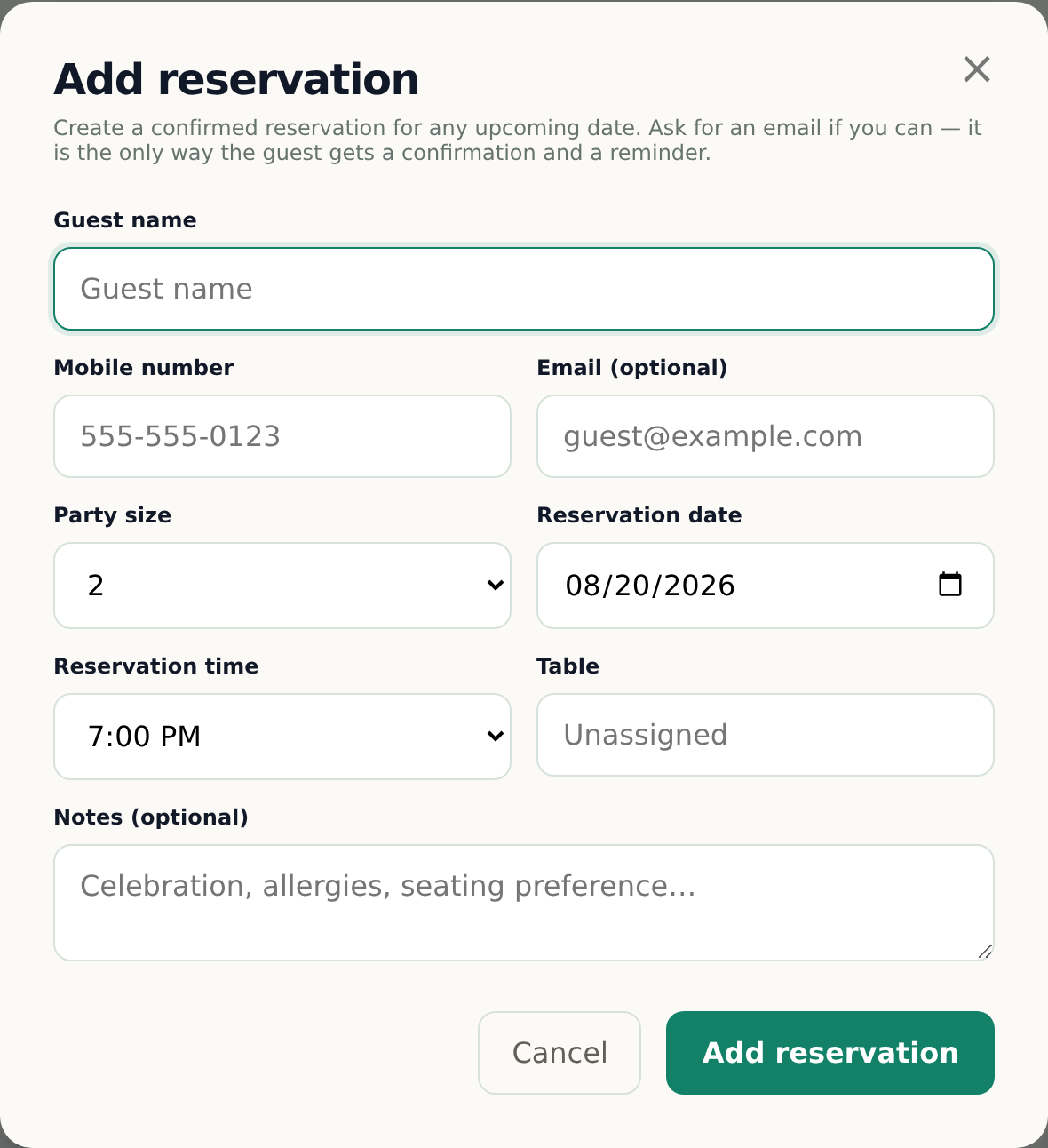
A four-digit code that protects Settings on a shared tablet, so a host cannot change your hours, buy credits, or regenerate your QR code by wandering into the wrong tab.
Turn it on under Settings → Settings access. Once set, opening Settings asks for it, and it locks again after 30 minutes.
I forgot the Settings PIN.
On the PIN prompt, choose Forgot PIN? and enter your account password — the one you sign in with. That switches PIN protection off so you can set a fresh one.
Your staff do not know the account password, which is exactly why it works as the way back in.
Where do I change my address or phone number?
Settings → Business details. Your address appears in the booking window and on the calendar invite guests get, so keeping it accurate means their map app takes them to the right door.
The phone number you enter there shows on the booking confirmation so guests can call you with questions. Enter the street on the first line, and city, state, and ZIP in the fields below it.
Can I add my logo and a photo?
Yes, under Settings → Widget appearance. Your logo shows in the booking window and on the waitlist page.
The cover photo fills the tall panel beside the booking form, so choose something vertical — around 800×1200 pixels works well. Wide shots get cropped hard. With no photo, that panel uses a solid colour you pick, and you can set an accent colour for buttons to match your brand.
How do I change my card or see invoices?
Settings → Plan & SMS credits → Update card. That opens our payment provider's secure portal, where you can change the card, download invoices, and see past charges.
We never see or store your full card number.
How do I cancel?
Cancel any time from the billing portal — Settings → Plan & SMS credits → Update card. Cancelling takes effect at the end of the period you have already paid for, so you keep working until then.
Your reservations, waitlist history, and settings stay in the account as you left them. If you come back, everything is where it was.
Can I send marketing to guests who booked with me?
By email, yes — to guests who asked for it. By text, no, ever.
Guests booking through your widget see an optional, unticked box: “Email me news and offers.” Everyone who ticks it lands on your guest marketing list under Settings → Guest marketing list, where you can download a CSV — name, email, when they opted in, and how often they have booked — ready to import into Mailchimp or any email tool. Addresses that bounced are excluded automatically. Sending the emails happens from your own email tool; it adds the legally required unsubscribe link for you.
Phone numbers are different. Guests give a number so you can reach them about their table — that is not consent for promotions, and US carrier rules (TCPA) require separate written consent for marketing texts. Table ATC therefore never sends marketing texts and never includes phone numbers in the export.
Can I get told when a booking comes in?
Yes. Under Settings → Notifications, switch on instant alerts to be emailed for every new online reservation and QR waitlist join.
There is also a daily or weekly summary email with your covers, no-shows, and average wait — less noisy if you do not want a ping per booking.
If something looks wrong
The handful of things that actually go wrong.
The booking button is not showing on my website.
Three things to check, in order:
- Was the snippet pasted as HTML/embed code rather than as plain text? Most site builders have a specific “embed” or “custom code” block — pasting into a normal text box shows the code instead of the button.
- Did the page get published after you pasted it? Drafts do not count.
- Both lines of the snippet need to be there — the
<div>and the<script>.
Still stuck? Reply to any Table ATC email with your website address and we will look.
A guest says they never got their confirmation email.
Ask them to check spam or promotions first — that is where it nearly always is. The confirmation comes from hello@tableatc.com under your restaurant's name.
Also check the address on the reservation for a typo; you can see it by clicking the booking on the Reservations tab. If it is wrong, the quickest fix is to call them on the phone number they left.
A guest did not get their table-ready text.
Work down this list:
- Does their row show a “no text opt-in” tag? Then no text was sent — they never ticked the box.
- Did the host see an error after tapping? Out of credits and opted-out guests both report there.
- Have they replied STOP at some point, perhaps on a previous visit? That opt-out persists.
Whatever the cause, call their name — they are still on the list in the right order.
The times guests see are wrong.
Almost always the timezone. Check Settings → Business details → Timezone — it drives every booking time, reminder, and report.
If the timezone is right but the times are still off, check Hours & closures for a service window left over from a previous schedule.
I still need help.
Reply to any email from Table ATC, or write to hello@tableatc.com. A real person reads it.
Include your restaurant name and, if it is about one booking or guest, roughly when it happened. That is usually enough for us to find it.
Nothing matched that. Try a different word — or email hello@tableatc.com and a person will answer.
Still stuck?
Email hello@tableatc.com. Include your restaurant name and roughly when the problem happened, and we’ll take it from there.